Gamma AI Review 2026: Is It Really Free? Pricing, Credits and Limits
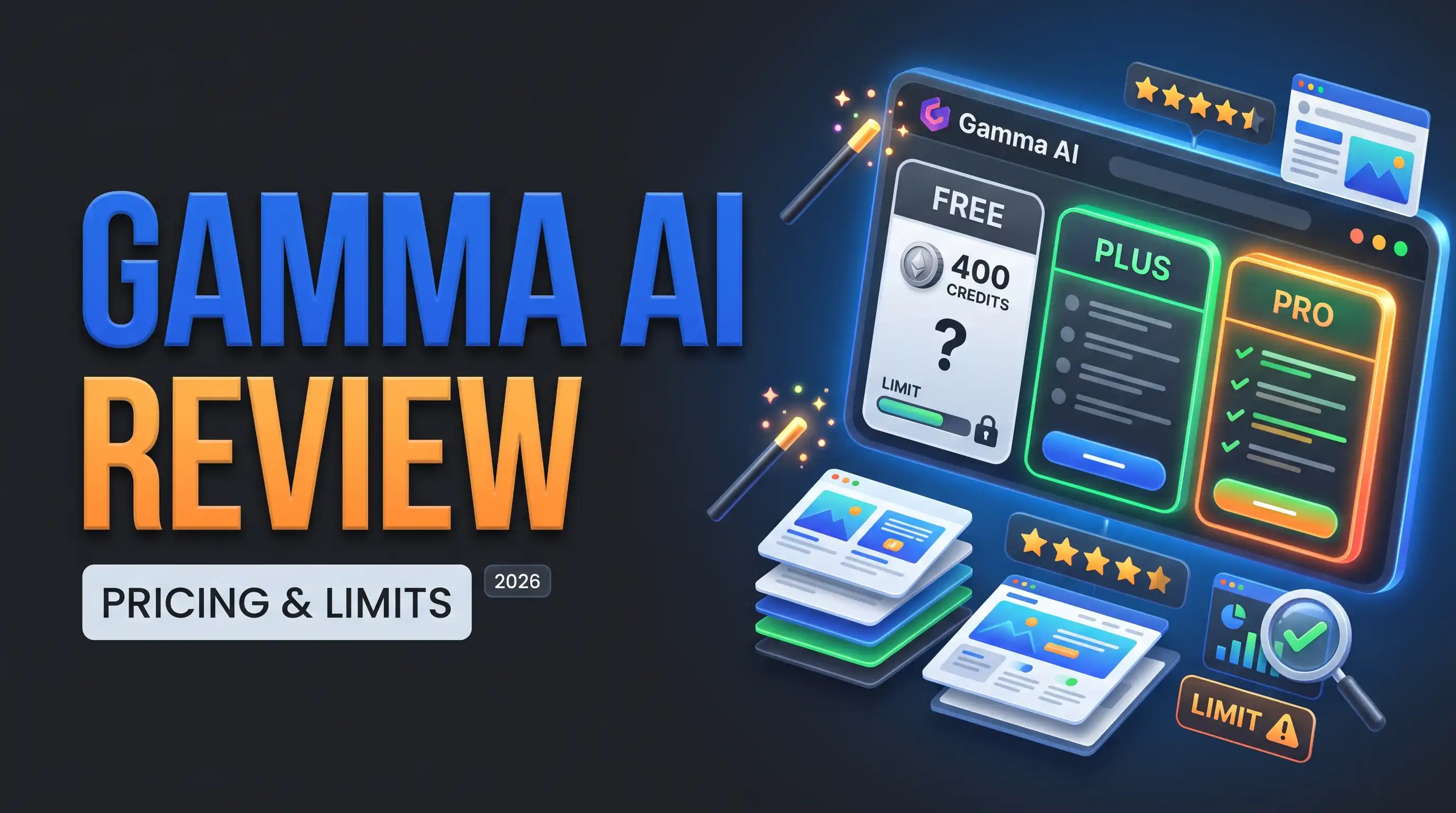
Gamma AI is free to start: you get 400 credits once, with up to 10 cards per prompt and Gamma branding. Paid plans run about $9 a month for Plus on annual billing (1,000 credits a month), $18 for Pro (4,000) and $90 for Ultra (20,000). The free credits never refresh, so anyone who makes presentations regularly ends up on a paid plan.
Is Gamma AI free? Here is what the free plan really gives you, what Plus, Pro and Ultra cost, how credits work, where Gamma falls short, and who should pick Beautiful.ai or Canva instead.
Gamma AI Review 2026: Is It Really Free? Pricing, Credits and Limits
Gamma AI is free to start, but the free plan is a trial in disguise: you get 400 credits once, they never refresh, and every presentation carries Gamma branding. Paid plans begin at about $9 a month on annual billing. Gamma is the fastest way to turn a rough outline into a designed deck, document or simple website, and it is a weaker choice when you need pixel-precise control. This review explains the plans, the credits, the limits that matter and the alternatives, as of November 2026.
What Is Gamma AI?
Gamma is an AI tool that builds presentations, documents and simple web pages from a prompt or an outline. Instead of a slide file, it creates a web-first deck that you share as a link, with layouts that adapt as you edit and analytics on views for shared content. It also generates images for your slides, so you do not have to hunt for stock photos. You will also see it called Gamma App, which is the same product.
Is Gamma AI Free?
Yes, there is a free plan, and you do not need a card to start. It gives 400 AI credits as a one-time grant, up to 10 cards per prompt, and Gamma branding on what you create. The key detail is that the 400 credits are not monthly, so once you spend them you must upgrade to keep generating.
That makes the free plan good for testing the tool on one or two real decks, and a poor fit for regular use. If you only need to try Gamma before deciding, start there. If you make presentations every week, plan on a paid plan from day one.
Gamma AI Plans at a Glance
| Plan | Monthly billing | Annual billing (per month) | AI credits | What changes |
|---|---|---|---|---|
| Free | $0 | $0 | 400, one time | Up to 10 cards per prompt, Gamma branding |
| Plus | About $12 | About $9 | 1,000 a month | No Gamma branding, up to 20 cards per prompt |
| Pro | About $25 | About $18 | 4,000 a month | Premium AI models, API, custom fonts and domains |
| Ultra | About $100 | About $90 | 20,000 a month | Most advanced AI, many custom domains |
| Team and Business | Per user | Per user | Pooled per user | Shared folders and a company theme, SSO on Business |
Gamma's own pricing page blocks automated tools, so these figures come from recent pricing guides. They agree on Free, Pro and Ultra, but disagree on Plus: most list 1,000 monthly credits and about $9 on annual billing, while others say 1,500 credits and $10. One guide lists Team at $20 and Business at $40 per user, with minimums of 2 and 10 users. Prices can also change with your location, so confirm on gamma.app before you pay.
How Gamma Credits Work
Credits pay for AI actions such as generating a deck, rewriting content and creating images, so a long presentation with many generated images uses more than a short one. Paid plans refresh their credits every month. One guide reports that unused credits roll over up to a cap of 2,000 on Plus, 8,000 on Pro and 40,000 on Ultra, so treat rollover as unconfirmed.
Dividing the annual price by the monthly credits shows where the value is.
| Plan | Annual price per month | Credits | Cost per 1,000 credits |
|---|---|---|---|
| Plus | About $9 | 1,000 | About $9 |
| Pro | About $18 | 4,000 | About $4.50 |
| Ultra | About $90 | 20,000 | About $4.50 |
Pro halves the price per credit compared with Plus, while Ultra costs the same per credit as Pro and simply gives you more of them. If Plus runs out every month, Pro is the better value, and Ultra is only worth it for heavy, daily use.
How to Save Gamma Credits
- Finish your outline first. Paste a clear outline instead of a vague prompt, so Gamma generates the right deck once instead of several times.
- Start short. Generate a deck of 8 to 10 cards, then expand only the sections you need, rather than asking for 20 cards of filler.
- Edit by hand when it is quicker. Fixing a typo or moving a card costs nothing, while asking the AI to rewrite it spends credits.
- Be selective with images. AI-generated images use credits, so use your own logos and photos where you have them.
- Pick the theme once. Choose a theme before you generate so you do not regenerate the deck to change its look.
What Gamma AI Does Well
Prompt to presentation. You describe a topic or paste an outline and Gamma generates a full deck with text, layout and imagery in one pass. Going from a rough idea to a decent first draft takes minutes rather than hours.
Layouts that fix themselves. Content reflows as you edit, so you rarely fight spacing or overflow the way you do in traditional slide software.
Web-first sharing. A deck can be shared as an interactive page with embedded media and view analytics instead of a static file, which suits sales decks, pitches and client updates.
More than slides. The same workflow produces one-page documents and simple websites, plus a library of themes to restyle everything instantly.
Where Gamma AI Falls Short
The free credits are one-time, so the tool stops being free faster than most people expect. Complex, data-heavy decks still need manual work, and Gamma gives you less precise design control than PowerPoint or Keynote. Reviewers also report that exporting to PowerPoint can need cleanup, so check the layout after you export. For teams that want strict brand enforcement across a company, a dedicated tool may fit better.
Gamma AI Pros and Cons
Pros: one-click generation from a simple outline; works for presentations, documents and web pages; modern, responsive designs that look good on any device; a free plan with no card needed; and view analytics on shared decks.
Cons: the free credits are one-time and do not renew; complex, data-heavy decks still need manual work; design control is less precise than dedicated slide software; and PowerPoint exports can need cleanup.
Who Is Gamma AI Best For?
| If you are... | Is Gamma a good fit? | Why |
|---|---|---|
| A freelancer or consultant sending client proposals | Yes | A clean web deck from an outline in minutes, shared as a link |
| A founder drafting a pitch deck | Yes, for the first draft | Fast structure and layout, then refine the story by hand |
| A teacher or student making lesson slides | Yes | The free plan covers a few decks, and layouts fix themselves |
| A marketer needing a one-page doc or simple site | Yes | The same workflow produces documents and basic web pages |
| A finance team building dense data decks | Not ideal | Complex charts and tables still need manual work |
| A brand team enforcing strict templates | Not ideal | Beautiful.ai or a template-driven tool controls the brand more tightly |
Is Gamma AI Worth Paying For?
Pay for Plus if you need to remove the Gamma branding and build decks of up to 20 cards, which is the point where most freelancers and small teams upgrade. Move to Pro when you run out of Plus credits or need custom fonts, custom domains or the API. Stay on the free plan if you only make a few presentations a year, or use another tool you already pay for.
Gamma AI vs Beautiful.ai vs Canva
| Tool | Free plan | Paid from | Pick it if... |
|---|---|---|---|
| Gamma | 400 credits, one time | About $9 a month (annual) | You want a full draft from a prompt in minutes |
| Beautiful.ai | No free plan, 14-day trial | $14.50 a month (annual) | You care about tidy Smart Slide templates and brand control |
| Canva AI | Free with limited AI credits | Canva Pro | You want AI inside a full design tool you already use |
Beautiful.ai is the closer rival for polished business decks, and Canva is the better choice when presentations are only one of many designs you produce. See our Beautiful.ai profile and Canva AI profile for their pricing.
How to Use Gamma AI in Five Steps
- Sign up at gamma.app and start a new project.
- Describe your topic, or paste an existing outline or document.
- Let Gamma generate the full deck, then review the content and layout.
- Apply a theme that matches your brand or the style you want.
- Share it as a link, present it or export it, and upgrade if you run out of credits.
Read the full tool breakdown on our Gamma profile, or browse every option in the AI tools directory.
Frequently Asked Questions
Is Gamma AI free?
Yes. The free plan gives 400 AI credits once, up to 10 cards per prompt and Gamma branding, and it does not require a card. The credits do not refresh, so regular use needs a paid plan.
How much does Gamma AI cost?
Recent guides list Plus at about $9 a month on annual billing, Pro at about $18 and Ultra at about $90, with monthly billing costing more. Team and Business are priced per user. Confirm on gamma.app, since prices vary.
How many credits does Gamma give for free?
The free plan gives 400 credits as a one-time grant. They are not renewed every month, so once they are spent you need to upgrade to keep generating.
Does Gamma AI add a watermark?
On the free plan, Gamma branding is applied to what you create. Paid plans from Plus remove the branding, according to recent pricing guides.
Do Gamma credits roll over?
Paid plans refresh credits monthly. One guide reports a rollover cap of 2,000 on Plus, 8,000 on Pro and 40,000 on Ultra, but this is not confirmed on the pricing page, so check before relying on it.
Can I export Gamma to PowerPoint?
Gamma offers export options on paid plans, but reviewers report that PowerPoint exports can need layout cleanup, so check the file after exporting.
Is Gamma better than PowerPoint?
Gamma is faster for generating a first draft from a prompt, while PowerPoint gives you more precise control over every element. Many people draft in Gamma and finish in PowerPoint when exact design matters.
User Reviews
Be the first to review!